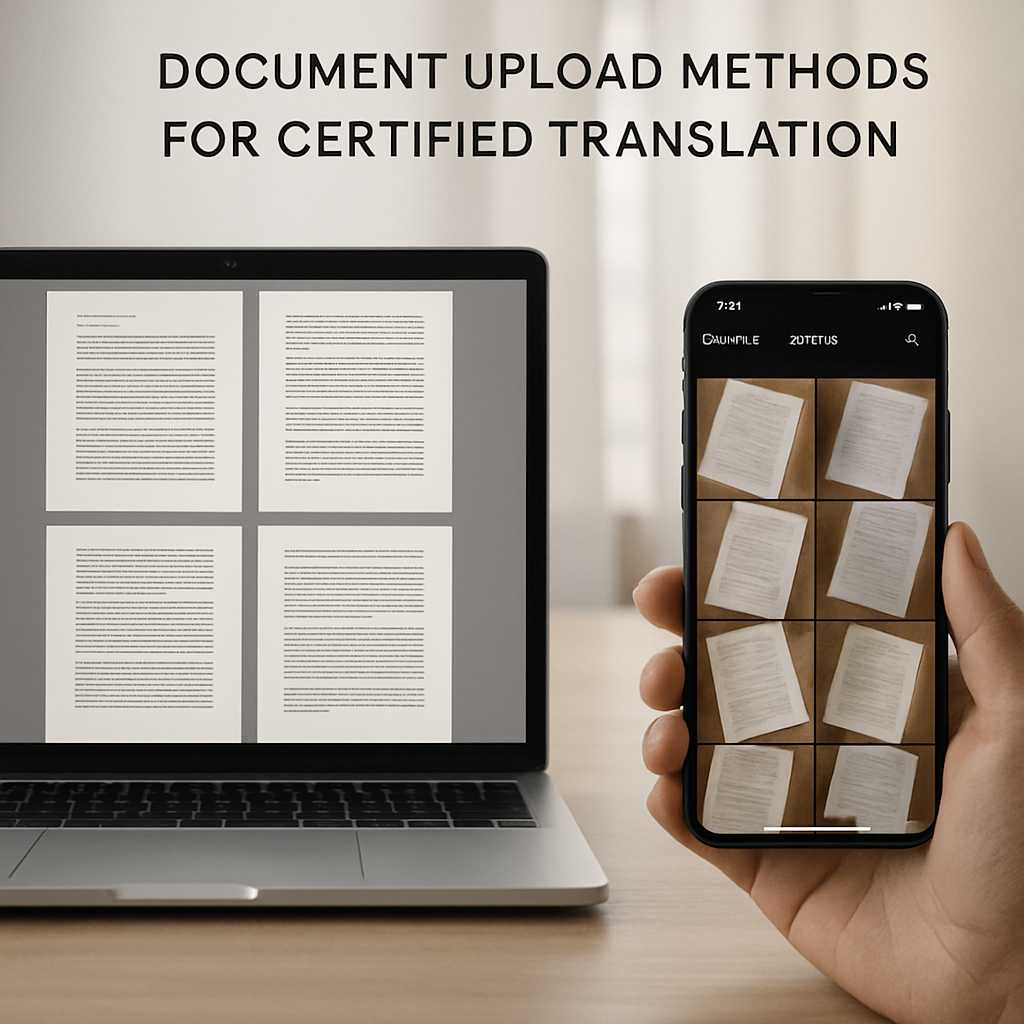
PDF vs Photos: Best Upload Formats for Faster Certified Translation
When people ask about the best format for translation upload, they usually assume the answer is technical. It is partly technical, but mostly practical. The file you send affects speed, readability, page order, quoting accuracy, and the risk of a translator having to stop and ask for a better copy before work can begin.
For most certified translation orders, a clean PDF is the safest format to upload first. A good photo can still work, especially for a one-page certificate or ID, but PDF usually creates fewer delays. It keeps pages together, reduces confusion, and gives the translator a clearer source to work from.
That matters more than many clients realize. A translation cannot be stronger than the document it starts from. If the source file is cropped, shadowed, compressed, out of order, or partly unreadable, the job becomes slower and the final submission becomes riskier.
If you are preparing documents for a deadline, the smartest move is simple: send the clearest version you have, and if you can choose the format, choose PDF first.
Why PDF usually wins
PDF is not “better” because it sounds more official. It is better because it usually makes document handling cleaner from the first step.
A PDF keeps the document together
A certified translation often needs to reflect the original page sequence carefully. That becomes much easier when:
- all pages sit in one file
- the order is already correct
- nothing is missing from the back pages
- the translator can review the whole pack at once
With separate photos, problems appear quickly. Page 3 may arrive before page 2. The reverse side of a certificate may be forgotten. A stamp at the bottom edge may be cut off in one image but visible in another. These small issues create avoidable back-and-forth.
A PDF is easier to review for completeness
When a translator opens one multi-page PDF, they can spot issues early:
- missing pages
- repeated pages
- upside-down pages
- faint text
- incomplete margins
- seals or handwritten notes that need attention
That speeds up quoting and production. It also reduces the chance of discovering a problem halfway through the job.
A PDF usually survives sharing better than photos
Photos often lose quality when they pass through chat apps, screenshots, resaving, or repeated exports. Compression issues can soften text, distort numbers, and blur fine print. A proper PDF tends to be more stable for official document handling.
A PDF feels closer to the original document pack
For official submissions, clarity matters. A PDF preserves the sense of a complete record. The reviewer can follow the original structure more easily, and the translator can mirror that structure more reliably in the finished certified translation.
When photos are perfectly acceptable
Photos are not wrong. They are just more fragile.
A clear, well-lit photo can be absolutely fine when:
- the document is short
- the page is flat
- every edge is visible
- the text is sharp at full zoom
- there is no glare across seals, signatures, or small print
This often works for:
- one-page birth certificates
- marriage certificates
- passports
- ID cards
- driving licenses
- simple academic certificates
Where people get into trouble is not with the fact that they used a photo. It is with the fact that they used a rushed photo.
A rushed photo often has one or more of these problems:
- shadows from the phone or hand
- glare from overhead lights
- a corner cropped out
- curved paper near the spine
- background clutter
- soft focus
- over-compression after sending
So the real rule is this: a sharp photo is better than a bad PDF, but a good PDF is usually better than a photo.
The format priority that saves time
If speed matters, use this order of preference:
- Native digital PDF – Best for bank statements, official letters, university records, and downloadable documents that were already created digitally.
- Scanned multi-page PDF – Best for paper certificates, civil records, bundles, and application packs.
- High-resolution PNG or JPG, one page per image – Acceptable when a PDF is not available or when you are sending a quick first review copy.
- Screenshots – Emergency fallback only. They are often cropped, compressed, and incomplete.
That ranking is useful because it separates two different questions:
- What is easiest for you to send?
- What is easiest for the translator to trust and work with?
Those are not always the same thing.
PDF vs photos: what changes in practice
| Format | Works well for | Main advantage | Main risk |
|---|---|---|---|
| Multi-page documents, official records, bundles | Keeps pages together and easier to review | A poor scan can still be unreadable | |
| JPG/JPEG | Quick single-page photos | Fast to capture and send | Compression can soften text and small details |
| PNG | Single-page images with fine text or stamps | Keeps text edges sharper than heavily compressed JPG | Larger files, less convenient for multi-page packs |
| Screenshot | Quick previews only | Immediate | Often cropped, incomplete, and poor for official use |
The real issue: image clarity beats file extension
Clients sometimes focus too much on whether the file ends in PDF, JPG, or PNG. The bigger question is whether the source is readable enough for an accurate certified translation.
A translator needs to see:
- names exactly as written
- dates clearly
- numbers without ambiguity
- stamps, seals, and annotations
- handwritten notes where relevant
- page references and document numbers
- margins and edges that prove nothing is missing
If the file hides any of those, the process slows down.
That is why a simple phone photo can beat a badly scanned PDF, and why a clean scan app export can beat a dark camera shot taken on a table at night.
The compression problem people miss
Compression issues are one of the most common reasons a file looks “good enough” on a phone screen but fails when someone tries to work from it closely.
That matters because translators do not just read the large heading in the middle. They also need the small details:
- registry numbers
- tiny footer text
- issue dates
- seals
- abbreviations
- side notes
- machine-readable data
- marks on the reverse side
Heavy compression can make those details fuzzy or blocky. The risk gets worse when a file has been:
- sent through a chat app
- screenshotted and resent
- downloaded and re-saved several times
- exported on a low-quality setting
- reduced to save storage space
If you need fast turnaround, avoid sending the most compressed version of your file. Send the cleanest one.
Scan apps usually beat casual phone photos
If you only have paper documents, a scan app is often the easiest upgrade you can make.
A decent scan app helps by:
- detecting page edges
- flattening perspective
- improving contrast
- turning several pages into one PDF
- keeping the order consistent
- making the result easier to email or upload
That is often the difference between a document that looks “snapped quickly” and one that looks ready for professional handling.
A scan app is especially useful for:
- certificates with borders
- folded papers
- documents photographed on uneven surfaces
- long bundles that need one file
- pages that need cropping and rotation before upload
The documents that should almost always be sent as PDF
Some files are technically possible to send as photos but are far better as PDF.
Multi-page certificates and civil records
If the document has front and back pages, registry notes, or supporting pages, merge it into one PDF. That removes confusion immediately.
Bank statements and financial records
These often contain fine print, tables, and repeating date or balance lines. PDF preserves that structure much better.
Academic transcripts
Transcripts usually involve multiple pages, stamps, grading legends, and page sequences. Keeping them in one PDF helps prevent omissions.
Application bundles
If several documents belong to one submission, send them clearly named and grouped. A merged PDF for each document type is often the easiest setup to review.
When separate images are better
There are a few cases where separate images can still be the better choice.
ID cards and passports
For small items, a flat, high-resolution image of the photo page or card side can work well, provided nothing is cropped.
Damaged originals
If a document has folds, shine, or embossing, a carefully retaken image may reveal details better than a rushed scan.
A quick pre-check before you order
If you need a fast answer on whether a document is readable, a clear image may be enough for the first check. The final file can then be resent as PDF if needed.
Proceed now or pause and rescan?
This is where many delays can be avoided.
Proceed now if the file is:
- sharp at full zoom
- complete on every page
- properly oriented
- free from glare
- readable in small print
- correctly ordered
- not obviously compressed
Pause and rescan if the file has:
- cropped corners
- missing reverse pages
- shadows across text
- reflections over stamps or signatures
- blurred small print
- pages mixed together
- screenshot instead of full pages
- several images when one clean PDF would be easier
A two-minute rescan can save hours later.
How to make a better upload in five minutes
You do not need specialist equipment. You need a better process.
1. Use even light
Natural daylight or bright indirect light is better than a dim room or a single ceiling light that creates glare.
2. Place the document flat
Do not photograph it while holding it in the air. Put it on a plain surface and flatten folds first.
3. Capture every edge
Leave a small border around the document so nothing important is cut off.
4. Check page order
Before exporting, make sure page 1 really is page 1, and that the reverse side is included where relevant.
5. Export as PDF when possible
If your app lets you combine pages into one PDF, do it.
6. Zoom in before sending
Check names, dates, stamps, footnotes, and tiny printed references.
7. Name the file clearly
A good filename reduces confusion immediately. For example:
- Birth-Certificate-Spanish-to-English.pdf
- Bank-Statement-Jan-to-Mar-2026.pdf
- Degree-Transcript-4-pages.pdf
Best format for translation upload by situation
Downloaded statement or official e-document
Send the original PDF.
Paper certificate on your desk
Use a scan app and export a PDF.
Passport or ID card
A clear high-resolution image is usually fine, but make sure all edges are visible and nothing is obscured.
Transcript or court bundle
Use one properly ordered PDF, not a gallery of loose photos.
Urgent same-day request
Send the clearest version immediately, but avoid screenshots and over-compressed chat images.
A cleaner file leads to a cleaner certified translation
Certified translation is not only about converting words. It is also about presenting a complete, traceable, professional document set that can be reviewed with confidence.
That starts with the upload.
A good source file helps the translator:
- quote faster
- check completeness sooner
- preserve layout more accurately
- spot names and dates properly
- note stamps, seals, and handwritten elements
- prepare a cleaner final pack for submission
In other words, the fastest translation often starts before the translation begins.
A simple rule to remember
If you are deciding between PDF vs photos, use this rule:
Choose PDF by default. Choose photos only when they are exceptionally clear or when a PDF is not available yet.
That one decision removes a surprising amount of friction.
Before you upload
Run this final check:
- Is the document complete?
- Is every page readable at full zoom?
- Are stamps, signatures, and notes visible?
- Are pages in the right order?
- Is PDF available?
- If not, are the images clean enough to work from without guessing?
If the answer is yes, your project is already off to a stronger start.
Need your documents checked before submission? Send the clearest file you have and get a fast review on format, readability, and turnaround before the work begins.
FAQs
Is PDF or JPG better for certified translation?
PDF is usually better for certified translation because it keeps pages together, preserves order, and reduces confusion during review. JPG can work for short documents, but only when the image is sharp, complete, and free from heavy compression.
Can I upload phone photos for a certified translation?
Yes, phone photos can be accepted if they are clear, flat, well lit, and fully readable. They work best for short documents such as certificates, passports, or ID cards. For longer packs, PDF is usually more reliable.
What is the best format for translation upload if I have multiple pages?
A single properly ordered PDF is usually the best format for translation upload when the document has multiple pages. It makes completeness checks easier and helps avoid missing or duplicated pages.
Do compression issues affect translation quality?
They can. Compression issues may blur names, dates, numbers, stamps, and small print. That slows down the process and may force a rescan request before translation can continue.
Should I use a scan app or just take a photo?
A scan app is usually the better option for paper documents because it can crop edges, improve contrast, flatten perspective, and combine pages into one PDF. A casual photo is more likely to create glare, shadows, or page-order problems.
Is PNG better than JPG for document images?
PNG can keep text edges sharper because it does not rely on the same kind of heavy compression often used in JPG files. For single-page document images, PNG can be useful. For convenience and multi-page handling, PDF still tends to be the stronger choice.

